
Introduction
Cooling is crucial for computer performance and longevity. Fans are your PC’s primary defense against overheating, working silently to keep temperatures down. Knowing how to identify fan problems and adjust their speeds can make a significant difference in tweaking your system’s overall efficiency. In this comprehensive guide, you’ll learn techniques to ensure your fans are functioning at their best.
Basics of Computer Fans
Not all fans in your computer are created equal, and understanding their differences is vital.
- Types of Fans: Case, CPU, and GPU Fans
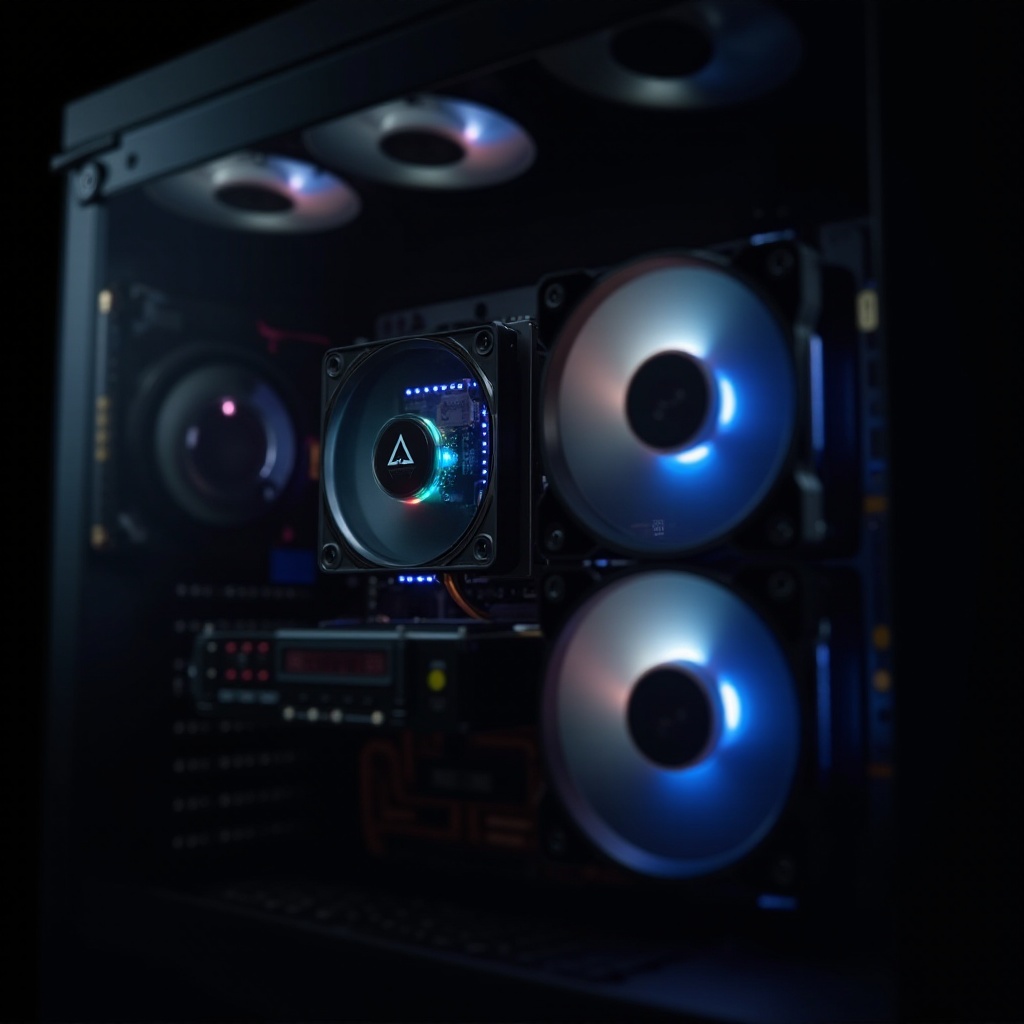
Case fans optimize airflow within the chassis, CPU fans are dedicated to cooling the processor, and GPU fans handle the graphics card. Each fan plays a unique role, and recognizing this helps in troubleshooting cooling problems effectively.
- Understanding Fan Specifications and Curves
Familiarize yourself with the specifications such as speed, noise levels, and power consumption. Fan curves map out the relationship between temperature and fan speed, aiding in fine-tuning for an efficient noise versus cooling balance.
Understanding the basics sets the foundation for identifying potential problems your fans might encounter.
Detecting Fan Issues
Fans can sometimes fail, leading to overheating and other issues. Spotting these problems early can save your components from harm.
- Common Symptoms of Fan Problems
Listen for strange noises such as grinding or clicking; these are signs your fan might be on the brink of failure. Also, monitor for unexpected spikes in temperature, indicating possible fan inefficiency.
- Tools and Software for Monitoring Fan Performance
Use software like HWMonitor or SpeedFan to track internal temperatures and fan speeds. These tools provide real-time data that can help pinpoint when and where a fan is malfunctioning.
Once potential issues are identified, the next step is to manage and adjust fan speeds for optimal performance.
Techniques for Controlling Fan Speeds
Controlling fan speeds involves balancing performance with noise reduction. Luckily, several methods can enhance this process.
- Built-in BIOS Fan Control Settings
Access the BIOS to adjust fan settings. Many motherboards offer the ability to set fan speed thresholds based on temperature, allowing them to run faster under high system loads.
- Using Third-Party Software for Enhanced Control
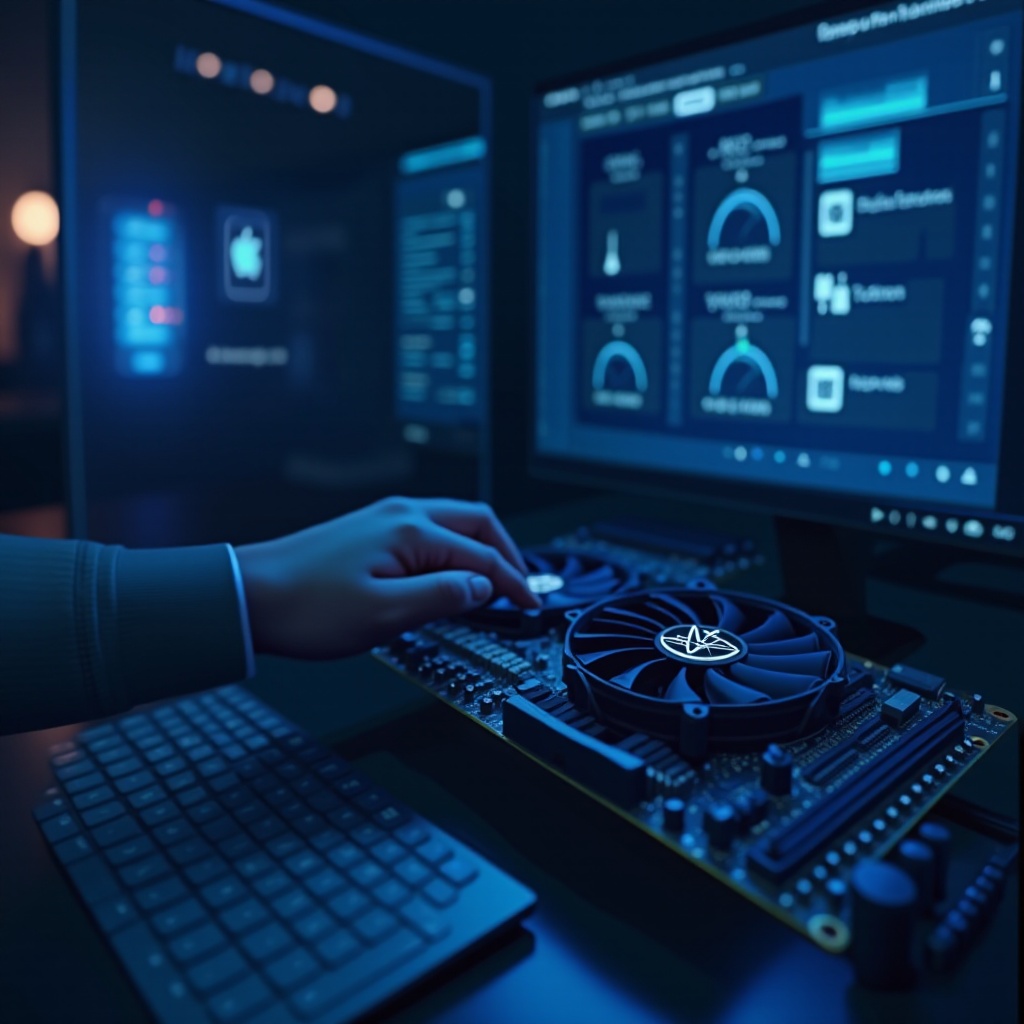
For more precise control, third-party utilities such as MSI Afterburner permit detailed speed settings and temperature management. These tools can create tailored fan curves to optimize performance based on specific needs.
- Creating Custom Fan Profiles
Develop profiles for various scenarios like intensive gaming or quiet operation. Tailoring fan speed to activity type not only saves power but also prolongs fan lifespan.
Once you’ve mastered these techniques, you can explore advanced strategies to further optimize cooling.
Advanced Fan Management Tips
Looking to go beyond the basics? Advanced fan management can unlock further performance gains.
- Installing Additional Fans for Improved Airflow
Evaluate your case’s cooling potential. Installing extra fans can especially help reduce temperature hotspots—important for systems under regular heavy usage.
- Understanding PWM vs. DC Fans and Their Applications
PWM fans provide more precise control through adjustable pulse width, while DC fans offer fixed voltage control. Selecting the appropriate fan types for your motherboard can enhance cooling with less noise.
Implementing advanced strategies ensures a stable system environment while reducing the risk of overheating.
Conclusion
Effectively detecting and controlling your computer’s fans leads to a cooler, quieter, and more efficient system. By keeping an eye on fan performance and adjusting as necessary, you safeguard your components and maintain optimal computing conditions. Regular maintenance and knowing how to modify settings contribute significantly to prolonging the lifespan of your PC.
Frequently Asked Questions
What are the signs of a failing computer fan?
Signs include noisy operation, irregular winding speeds, and increased temperatures.
Can I control fan speed without software?
Yes, you can adjust fan speeds through your computer’s BIOS settings, which often include thermal management options.
How often should I clean my computer fans?
Fans should be cleaned every few months to remove dust buildup and ensure optimal function.