
Knowing the type of CPU in your computer is essential for planning upgrades, troubleshooting issues, or even buying new software. Whether you are using a Windows PC, a Mac, or a Linux system, there are several methods at your disposal to discover your CPU specifics. In this guide, we explore these methods so you can confidently check what CPU your system has.
Understanding the Importance of Knowing Your CPU
Understanding your computer’s CPU is crucial for multiple reasons. The CPU acts as the brain of your computer, directly affecting its performance. Knowing your CPU type is helpful when considering hardware upgrades, checking software compatibility, and troubleshooting system issues. Armed with this information, you can make informed decisions about your computing needs.
Now that we have established the significance of CPU details, let’s look at various methods for discovering your CPU specifics on different operating systems, starting with Windows.

Methods to Identify Your CPU on Windows
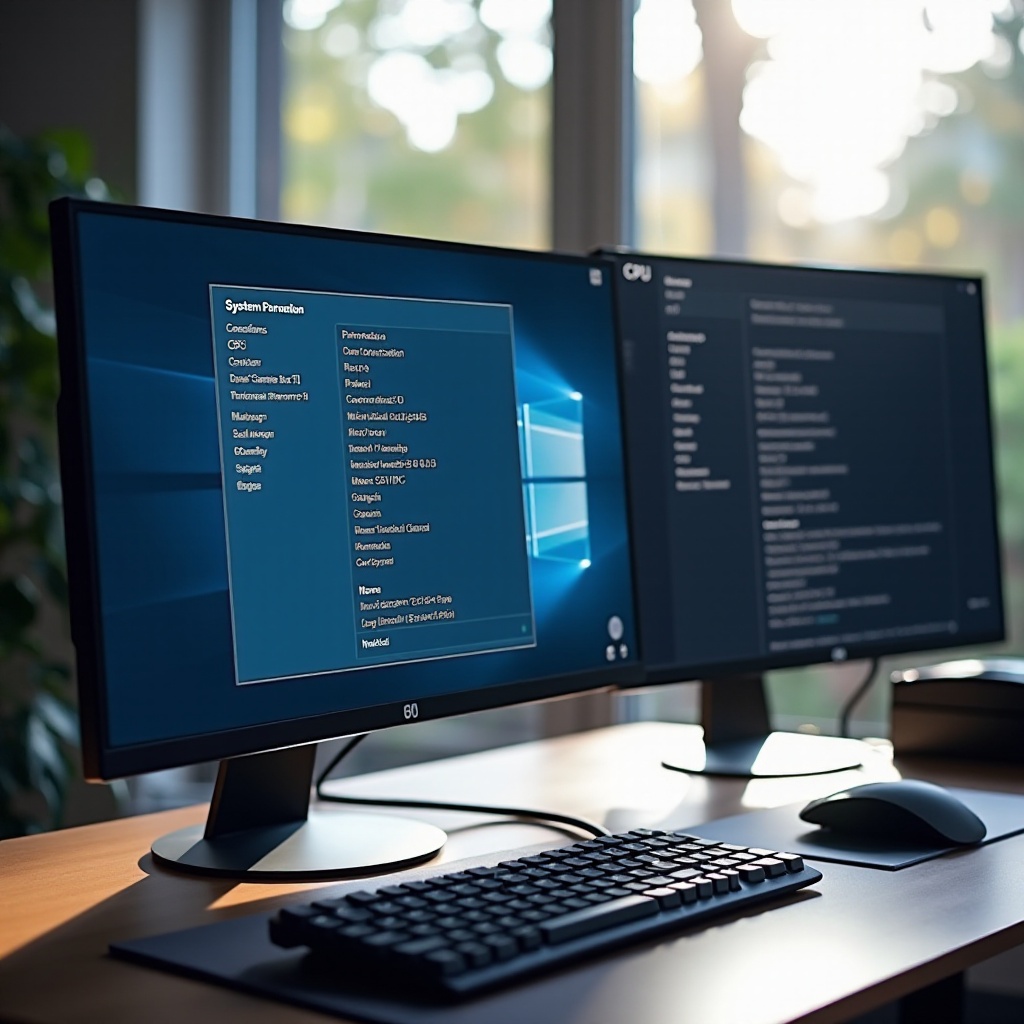
Windows users can use several built-in tools to easily check CPU information.
Using the System Information Tool
The System Information tool in Windows provides comprehensive details about your hardware:
1. Press Windows + R to open the Run dialog box.
2. Type msinfo32 and hit Enter.
3. In the System Information window, you’ll find a summary of your system, including the processor type listed under the ‘Processor’ entry.
This method is a quick way to get an overview of your CPU specs without the need for additional software.
Checking Through Task Manager
Another simple method to view CPU information is via Task Manager:
1. Press Ctrl + Shift + Esc to open Task Manager.
2. Go to the ‘Performance’ tab.
3. Select ‘CPU’ from the left sidebar.
Task Manager displays detailed data about your CPU, such as its name, speed, and the number of cores. It also provides real-time CPU performance, which can help in identifying and addressing performance issues.
With Windows methods covered, let’s move on to discovering CPU information for Mac users.
Discovering CPU Information on Mac
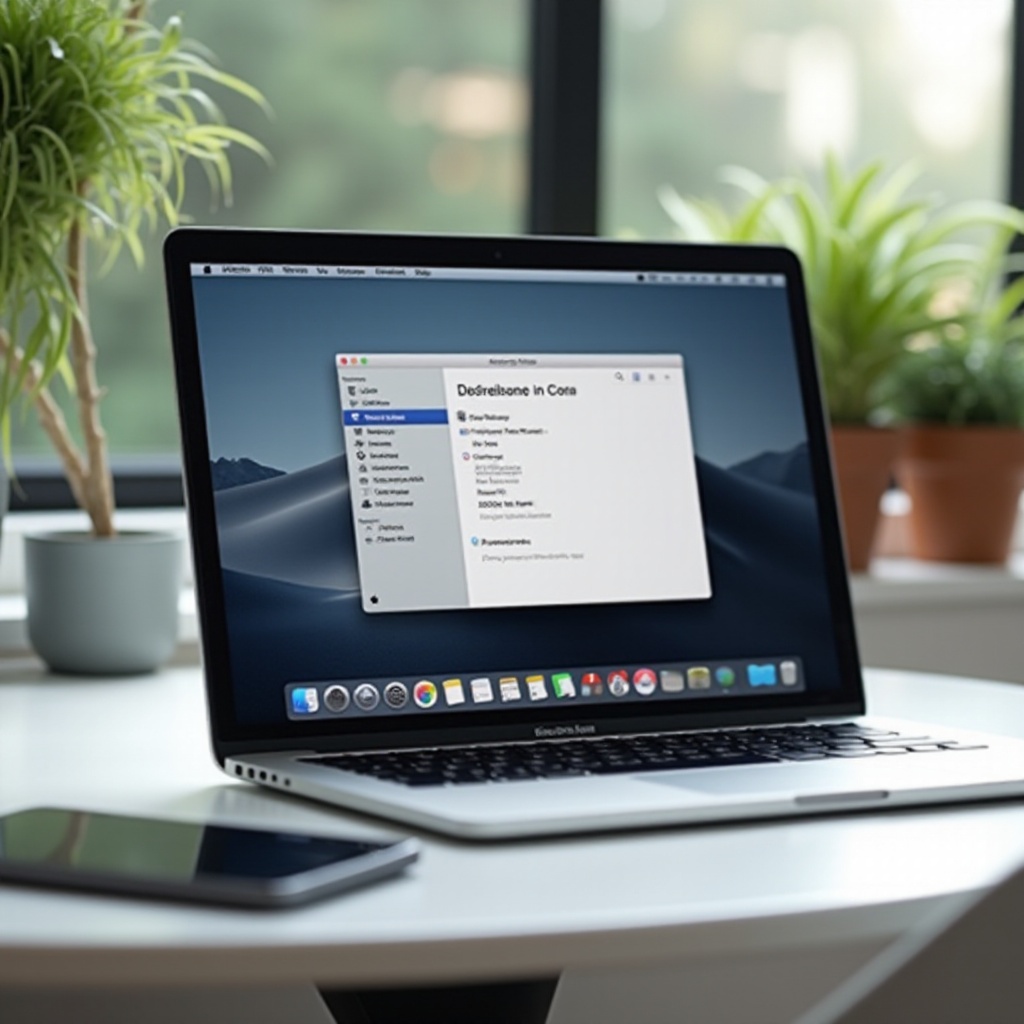
Mac users have straightforward methods to reveal their CPU details as well.
Using ‘About This Mac
Apple offers a simple way to access CPU information through the macOS interface:
1. Click the Apple logo in the top-left corner of your screen.
2. Select ‘About This Mac’ from the dropdown menu.
3. In the Overview tab, you’ll see details about your Mac, including the processor type.
This built-in method allows for a quick glance at your CPU with just a few clicks.
Third-Party Applications for Mac
If you require more detailed information, third-party applications like iStat Menus or Intel Power Gadget can provide in-depth CPU statistics:
1. Download the application of your choice and follow the installation instructions.
2. Open the application to view detailed CPU performance metrics and specifications.
These tools offer added insight into your Mac’s CPU performance, allowing you to monitor usage and troubleshoot any potential issues. Now, let’s explore how Linux users can access similar CPU information.
Finding CPU Details on Linux Systems
Linux provides robust tools and commands to identify CPU specifications via the terminal.
Terminal Commands for CPU Info
Linux users can run simple commands to gather CPU details:
1. Open the terminal.
2. Type the command lscpu and press Enter.
This command outputs comprehensive information about your CPU, including architecture and core count.
Alternatively, you can use cat /proc/cpuinfo to display detailed, textual information about each CPU core. These commands afford quick access to accurate details, especially valuable for developers and system administrators.
With CPU information easily accessible on Linux systems, let’s now consider cross-platform solutions through third-party software.
Utilizing Third-Party Software Across Platforms
Third-party software provides versatile methods to find out what CPU you have, regardless of your operating system.
Overview of CPU-Z and Installation
CPU-Z is a popular tool that provides comprehensive information about your CPU, motherboard, and memory:
1. Download CPU-Z from its official website.
2. Install and launch the application.
3. Navigate to the ‘CPU’ tab to view detailed specifications, including model, core speed, and cache.
Understanding Output from Third-Party Software
These applications display a wealth of information, often more detailed than built-in tools. CPU-Z and similar software present detailed insights, like clock speeds and voltage, useful for users needing precise performance metrics or diagnostics.
Having explored third-party solutions, let’s consider an alternative method: physically inspecting your CPU.
Physical Inspection of Your CPU
For those who are comfortable handling computer hardware, physically inspecting your CPU can be an option:
1. Ensure your computer is disconnected from power.
2. Open the case following your manufacturer’s instructions.
3. Locate the CPU, typically found under a heatsink and fan assembly, and check any labeled identifiers.
This hands-on approach is less convenient but can be informative if other methods fail.
Conclusion
Knowing your CPU type is an essential part of computer proficiency, whether you’re upgrading, troubleshooting, or just curious about your machine’s capabilities. With these methods, you can quickly discover what CPU you have—whether on Windows, Mac, or Linux.
Frequently Asked Questions
How often should I check my CPU information?
It depends on your needs, but it is good practice to check whenever you consider upgrades, new software installation, or notice performance issues.
Can I find out CPU details without turning on my computer?
Yes, if your computer is accessible, you can check physically. However, software-based methods provide more detailed information.
What are the risks of using third-party software to check CPU information?
Only download software from reputable sources to avoid malware. CPU-Z and similar vetted software are generally safe to use.